

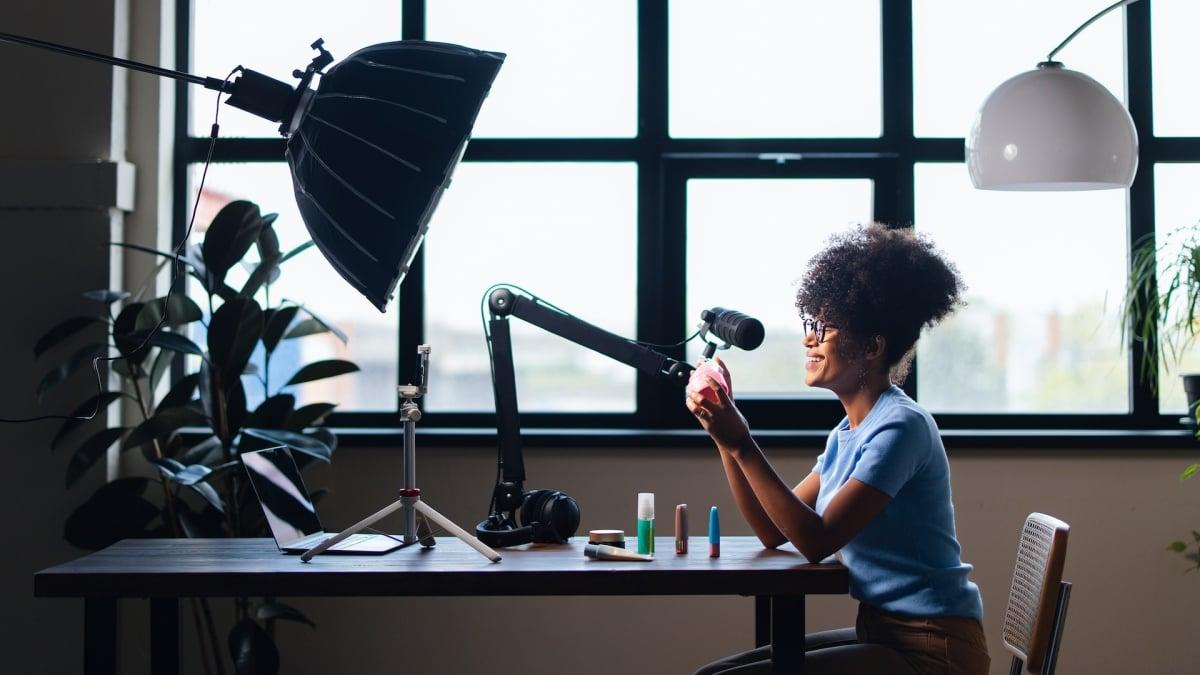
YouTube creators who playlist their videos can now easily turn them into shows.
Announced Thursday, the platform will now let anyone part of the YouTube Partner Program organise their video playlists into seasons of episodes, or create a new show using the tool.
This Tweet is currently unavailable. It might be loading or has been removed.
According to YouTube's support site, shows are defined here as "a collection of high-quality episodes with a clear connection across episodes." The platform provided some best practices for creators, including making sure the show has a "consistent story or topic" featuring the same hosts if possible, a "consistent look" with the same intro and thumbnail art style, and higher-quality video and sound.
Shows must have visuals (not just audio) and can be serial or non-serial, meaning they don't necessarily have to run chronologically. YouTube will default the running order by publish date, but you can edit this in YouTube Studio.
Mashable Light Speed
YouTube noted that creating a show might be advantageous to creators for visibility in search on the platform, saying "shows may be eligible to appear in search as well as under 'Recommended shows' and 'Continue watching.'"
Want to make a show from your existing episodes? It's pretty easy.
How to create a YouTube show from a video playlist
What You Need
- YouTube account
- YouTube Studio
- existing YouTube playlist
Step 2: Click "Content" in the left side menu.

Credit: Shannon Connellan / YouTube
Step 3: Click "Playlists."

Credit: Shannon Connellan / YouTube
Step 4: Hover over your chosen playlist and tap the three dots for "Options."

Credit: Shannon Connellan / YouTube
Step 5: Tap "Add show features" and set a season number, then enjoy playing around with the show tools.
According toYouTube, "All videos from the selected playlist are added as episodes to 'Season 1' of your show. If you manually set the order of videos in your playlist, episode numbers are assigned based on your specified order. If not, episode numbers are assigned based on oldest to newest order by published date."
Step 6: Add artwork for the show.
You'll need to add texted poster art and can optionally add backdrop and title treatment art. YouTube has the resolution and file size specifications for these on its help page.
Step 7: Select "Done" when you're finished.
If you want to add a brand new show, in the top-right corner of YouTube Studio's lobby, click "Create New show." After adding all the details like description and art, you can save the show, then manage adding new episodes from the "Content" menu in the YouTube Studio lobby — click "Add content" to start.
If you want to edit the episode order (YouTube defaults to publish date), head to "Episodes" within your show and hover over the season or episode number, then tap the arrow pointing down to move things around.
If you're not sure where to even start, check out Mashable's In My Bag series for the gear you'll need to become a content creator. You can also visit our VidCon hub for inspiration, and meet the Mashable 101, the creators shaping digital culture right now.

 Arabic
 French
 Spanish
 Portuguese
 Deutsch
 Turkish
 Dutch
Dutch
 Italiano
 Russian
 Romaian
 Portuguese (Brazil)
 Greek
Greek