


The best Counter-Strike 2 console commands and cheats
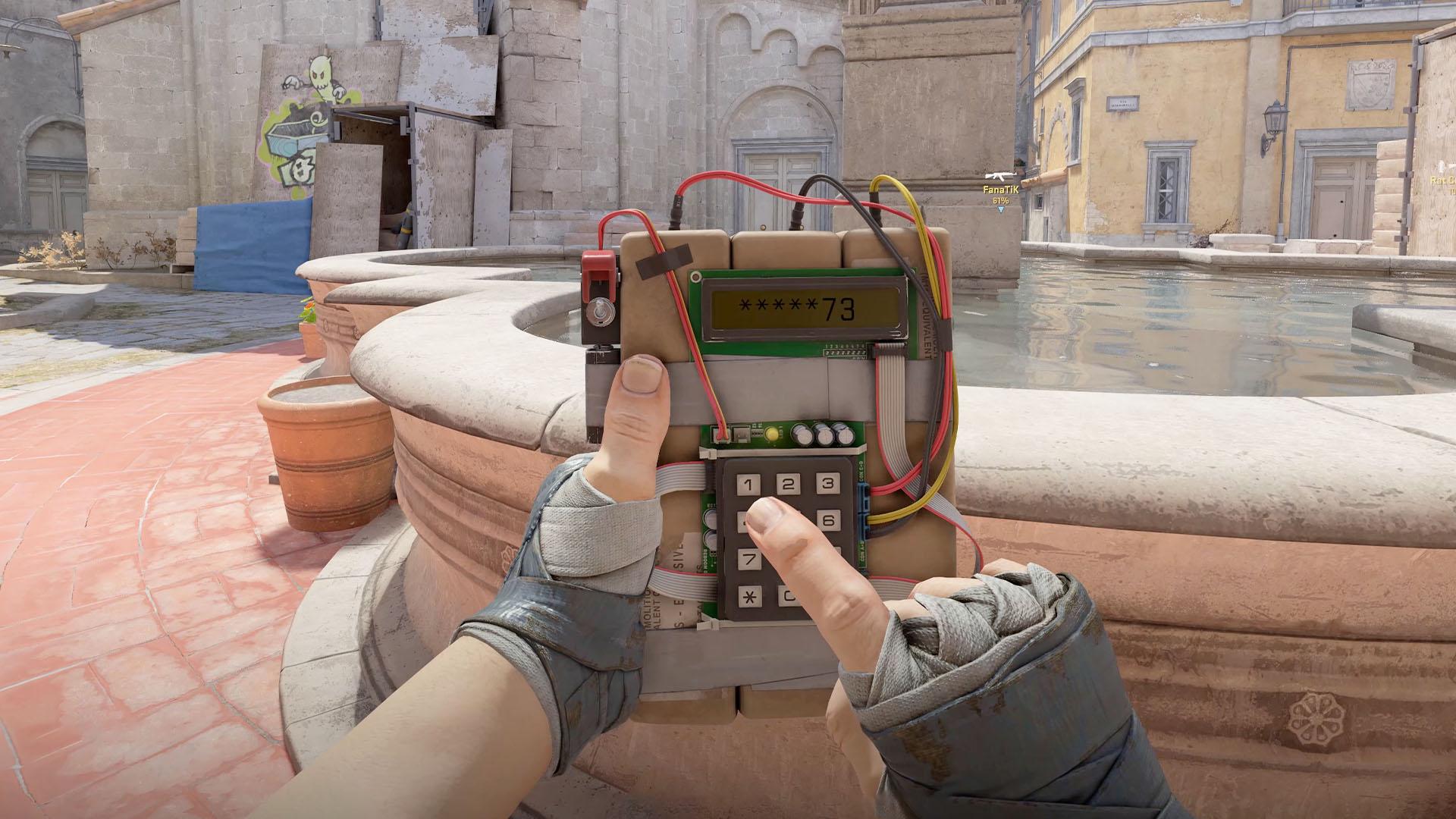
The best Counter-Strike 2 console commands and cheats
What are the CS2 console commands and cheats? Console commands are vital to unlocking the true potential of the CS2 practice mode, allowing you to set up scenarios that would take ages to put together in a matter of seconds. They can also help you refine your gameplay experience, customizing the HUD and other UI elements to suit your preference.
Learning how to use this advanced aspect of the multiplayer game can help you understand its inner workings to a greater degree. The way you use Counter-Strike 2 console commands and cheats is exactly the same as it has been in every Valve game ever released - the only confusing aspect is learning what each command does, but we've got you covered there.

You need to activate the cheats command before you can use any of the console commands in the list below. With any console commands that end in "1" or "0", remember that 1 means on and 0 means off.
| CS2 console command | Effect |
| sv_cheats 1 / 0 | Allows or disallows CS2 cheat commands to work. |
| cl_disable_ragdolls 1 / 0 | Enables or disables ragdoll physics on player death. |
| cl_showfps 1 / 0 | Enables or disables the FPS counter. |
| mp_roundtime / mp_roundtime_defuse / mp_roundtime_hostage | Lets you adjust the time for regular, defuse, and hostage matches. |
| god | Grants infinite health. |
| noclip | Allows you to fly around the map for training or video framing purposes. |
| bind (key) noclip | Bind a key to trigger noclip without having to enter the console. |
| give_weapon_(weapon name) | Gives you the defined weapon. |
| r_drawOther-Models 1 / 0 | Lets you see other players through walls. |
| sv_gravity | Lets you toggle low gravity. |
| sv_lan 1 | Sets up a local private server. |
| ent_bbox | Shows a rogue idea of an object's collision box (can help illustrate potential hiding spots). |
| cl_drawhud 0 | Removes all HUD elements. |
| cl_draw_only_deathnotices 1 | Removes most HUD elements except your crosshair and any death notices in the top right corner. |
| bot_place | Adds a bot to your cursor position. |
| bot_kick | Removes all bots from the current game. |
| bind (key) "say (message)" | Assign a key to instantly send a message to everyone in a match. |
| sv_infinite_ammo 1 | Unlimited ammo without the need to reload. |
| sv_infinite_ammo 2 | Unlimited ammo with reloading. |
| cl_crosshair_sniper_width x | Increase the thickness of the crosshair lines while aiming with a scope (default value is 1, goes up to 5). |
| r_fullscreen_gamma 2.5 | Boost your gamma to make the game look more vibrant. |
| mp_restartgame 1 | When playing in a private match, restart the game back to round one. |
| mp_buy_anywhere 1 | When playing in a private match, allow all players to purchase weapons outside of buy zones. |
| ammo_grenade_limit_total 5 | When playing in a private match, carry all five types of grenades at once. |
How to open the Counter-Strike 2 console command box
To open the CS2 console command box, head to the Game Settings tab on the general CS2 settings screen. Look for the "Enable Developer Console" setting, then use the "~" key on your keyboard to bring it up (you can usually find this right below your Escape key).

Counter-Strike 2 console command launch options
You can use these CS2 console commands through the game's preferences page on Steam to instantly activate them as the game launches:
| CS2 console command | Effect |
| -novid | Skips the launch video. |
| -fullscreen | Boots the game in fullscreen mode. |
| -console | Automatically opens the CS2 console command line box when the game boots. |
| +fps_max 0 | Unlocks the CS2 frame rate even in menus. |
| +cl_forcepreload 1 | Preloads essential game assets ahead of a match for smoother initial operation with a longer load time. |
How to use multiple CS2 launch commands at once
To use more than one CS2 launch command through Steam at a time, just enter each command followed by a space. Once you press play to launch the game, it will execute each entered command in unison.
Counter-Strike 2 console commands autoexec.cfg
If you're always using different computer setups, you may want to create an autoexec config file. This file contains a list of console commands that, upon startup, the game will automatically run this file and adjust your settings accordingly.
High-level players, typically those who are used to playing at LAN events will create their own autoexec files ahead of time to ensure their setup remains consistent. You can preset your graphics settings, mouse sensitivity, and adjust your HUD to instantly switch things to the way you want them.

How to find every Counter-Strike 2 console command
The CS2 console automatically completes any command you type into it; all you need to do is type a letter and you'll see every command in a scrollable list. To find out what all of these commands do, Valve has listed every CS2 command over at its website, but be warned that there are hundreds to sift through.
That's all you need to know about the Counter-Strike 2 console commands. While you're here, you can learn more about the best CS2 binds to perform multiple actions at once. We've also got a guide on how the CS2 ranks and rating system works to see how you stack up against the global competition.
Original article written by Joshua Brown.

 English
 Arabic
 French
 Spanish
 Portuguese
 Turkish
 Dutch
Dutch
 Italiano
 Russian
 Romaian
 Portuguese (Brazil)
 Greek
Greek