


Best Overwatch settings for optimized PC performance
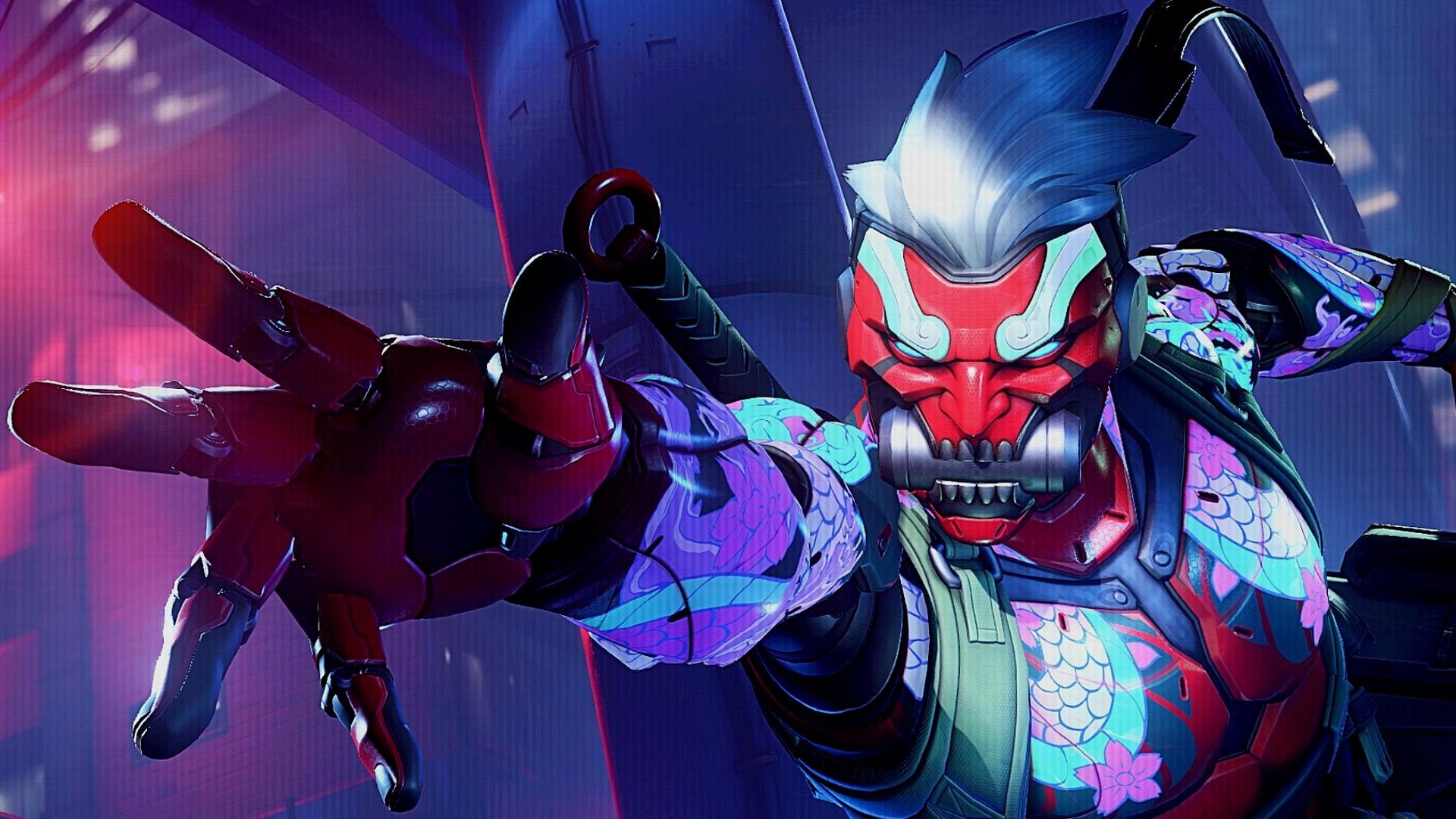
Best Overwatch settings for optimized PC performance
Looking for the best Overwatch settings? It's important to set yourself up using the most optimal settings for Overwatch to ensure your game runs perfectly. Not only will these settings reduce visual clutter, but having a consistent frame rate will help you even in the most intense fights where ultimates are going off every few seconds.
We've picked out the best Overwatch settings to both maximize your performance and eliminate any unnecessary graphical effects that could stop you from landing crucial shots. Of course, owning one of the best graphics card picks from our buying guide will undoubtedly help you achieve rock-solid performance in the multiplayer game, so check those out if you're experiencing any issues.

- Display Mode: Fullscreen
- Target Display: Best Match
- Aspect ratio: Relative to your monitor (usually 16:9)
- Field of View: 103 (higher is generally better for gameplay reasons as you're able to see more of the action)
- Dynamic Render Scale: Off
- Render scale: 100%
- Frame rate: Set this to your monitor's maximum refresh rate. If you're using G-Sync, set this to -2 FPS below your monitor's max refresh rate.
- V-Sync: Off
- Triple buffering: Off
- Reduce buffering: Off
- Nvidia Reflex: Enabled + Boost
- Gamma Correction: 2.20
- Contrast: 1.00
- Brightness: 1.00

- High quality upscaling: Default (Use AMD FSR on AMD GPUs, DLSS on Nvidia GPUs)
- Image sharpening: Default
- Antialias quality: High - SMAA Medium
- Texture quality: High
- Texture filtering quality: Epic - 16x
- Local fog detail: Low
- Model detail: Low
- Shadow detail: High
- Effects detail: Medium
- Lighting quality: High
- Refraction quality: High
- Screenshot quality: 1x Resolution
- Ambient occlusion: Off
- Dynamic reflections: Off
- Local reflections: Off
- Damage FX: Low
It's important to note that you may need to adjust your gamma, contrast, and brightness depending on your display. These settings are largely preference-based, so if you want your display to be brighter, dimmer, or more colorful, these are the settings to adjust.
Our best settings strike the right balance between graphics quality and performance. With that said, if you have a higher-end graphics card and you don't have any issues reaching a high frame rate, feel free to bump everything up to Ultra/Max. There isn't much visual clutter to worry about, but if you're really trying to maximize your in-game performance levels, you may want to set things to Low.
Best Overwatch settings for Steam Deck
- Display Mode: Fullscreen
- Target Display: Best Match
- Field of View: 103
- Aspect ratio: 16:10
- Dynamic Render Scale: Off
- Render scale: 100%
- Frame rate: 60
- V-Sync: On
- Triple buffering: Off
- Reduce buffering: On
- Gamma Correction: 2.00
- Contrast: 1.00
- Brightness: 1.00
- High quality upscaling: Default
- Image sharpening: Default
- Antialias quality: Low - FXAA
- Texture quality: Low
- Texture filtering quality: 8x
- Local fog detail: Medium
- Model detail: Medium
- Shadow detail: Medium
- Effects detail: Medium
- Lighting quality: High
- Refraction quality: High
- Screenshot quality: 1x Resolution
- Ambient occlusion: Low
- Dynamic reflections: Low
- Local reflections: Off
- Damage FX: Default
Overwatch runs great on the Steam Deck using the high graphical preset, which is similar to the settings we also used on PC. There are some other quick settings changes you'll need to make, which include turning off the dynamic render scale and setting the regular render scale to 100%.
You can also choose to set the Steam Deck's refresh rate to 60Hz, as we found this to offer a little extra stability in the performance. While playing on the Steam Deck OLED, from a full charge, we got two hours of gameplay in Overwatch before a recharge was needed.

Overwatch gameplay settings
Beyond graphics settings, there are a few gameplay-facing settings that are worth adjusting as they'll make it slightly easier to read the game or see targets.
In the Accessibility section, go to General and turn Camera Shake to reduced to make chaotic fights a bit less dizzying. Depending on how you're finding target identification, you might also want to play around with the color options for enemy UI under the 'Color Blind' options - some stand out a lot more than the default red one.
Does Overwatch need an SSD?
Overwatch doesn't require the use of an SSD, according to the system requirements. However, you will experience considerably longer loading times, in some instances resulting in you starting matches later than the rest of your team. As a result, we highly recommend upgrading to high speed storage - you can find our current SSD recommendations in our best gaming SSD guide.

How to monitor performance in Overwatch
If you want to keep an eye on performance in Overwatch, you can do so without having to download any additional applications. From the game settings, head to the 'Video' tab at the top of the screen, then click 'Details' right below that. You should see the option to display performance stats; enable that and 'Show Framerate'.
Now your stats will always appear in the bottom right of the screen. We also recommend turning on 'Show Network Latency' to work out if your ping is the reason why you're potentially missing some shots. With handheld gaming PCs, most will have a dedicated button to access a quick menu from which performance monitoring, sometimes called real-time monitoring, can be accessed.
Now you are all set up for the fastest-paced Overwatch combat. We've also got an Overwatch tier list to help you decide which character to play in the current meta.

 English
 Arabic
 French
 Spanish
 Portuguese
 Deutsch
 Turkish
 Dutch
Dutch
 Italiano
 Russian
 Romaian
 Portuguese (Brazil)