

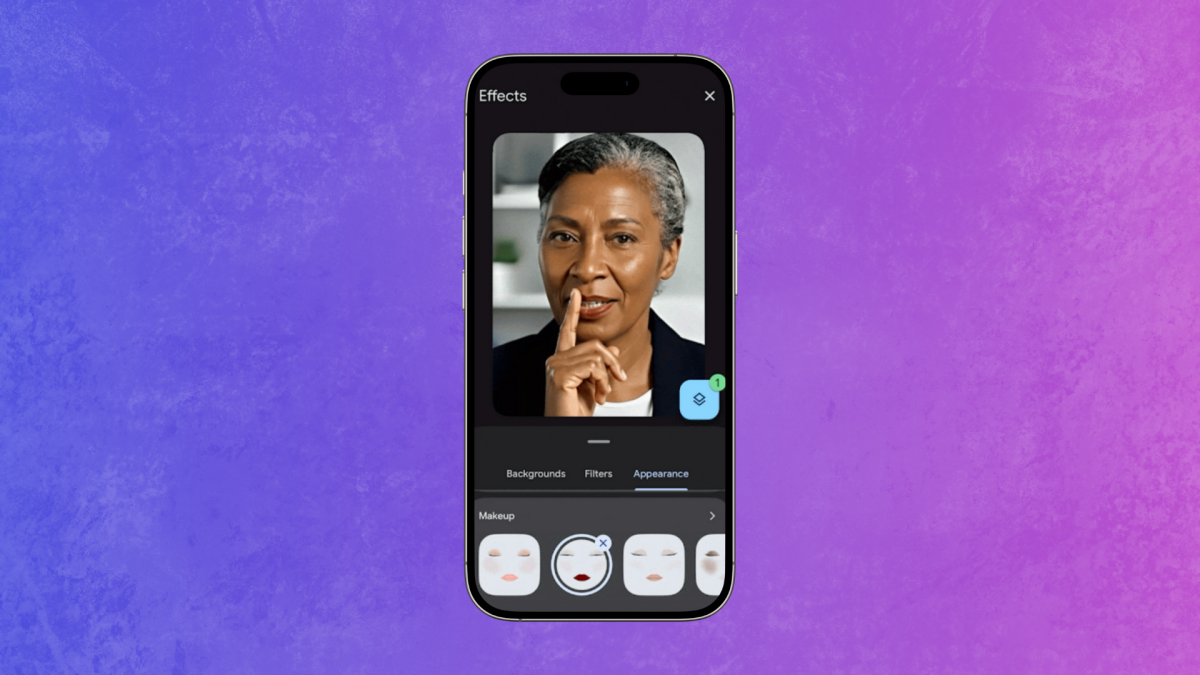
Google Meet has a new AI-powered makeup filter that lets you apply lipstick without opening a real tube.
Launched on Oct. 13, the tool is an expansion of the video call platform's "Touch Up" feature added in 2023. Similar to the AR beauty and makeup lenses on social media sites like TikTok, Instagram, and Snapchat, and the myriad virtual try-on platforms around, Google Meet's new feature allows users to add basic makeup filters that mimic foundation, blush, lipstick, mascara, and eyeshadow.
In a blog post, Google demonstrated the tool in the GIFs below, and from testing it myself, I have to say the facial mapping is impressively sticky.
Mashable Light Speed
On desktop:

Credit: Google Meet
On mobile:

Credit: Google Meet
There are 12 studio makeup options to choose from, titled things like "rosy pink," "cat eye," "goth chic," and "dewy fresh." But how do you find the makeup tool? Here's a step-by-step guide.
How to use Google Meet's new AI makeup tool
What You Need
- Google Meet on desktop
- laptop
- or smartphone
Step 1: Open Google Meet calendar event.
Don't join yet. Instead, click the icon showing a person in a frame with a small star in the right corner.

Credit: Google Meet
Step 2: Click "Appearance."
It's sitting beside "Background" and "Filters."

Credit: Google Meet
Step 3: Scroll down to the "Makeup" section and click on each face icon to try on each style.
Here, you can pick from 12 options, which vary from heavy to light.

Credit: Google Meet
Step 4: Click your choice of makeup, and make sure your camera is on to see it applied.
Tap the camera icon on the screen beside the microphone/mute button to turn it on and off.
Step 5: If you want to remove the makeup filter, simply tap the highlighted option again.
Step 6: Press the X in the top right corner of the window to return to the Google Meet lobby and click "Join now."
Step 7: If you want to turn the makeup tool on or off during the meeting, tap the three dots beside the red phone button.

Credit: Google Meet
Step 8: Then, click "Backgrounds and effects" and repeat the above process.

Credit: Google Meet
For more hacks on how to tinker with your Google Meet settings, Mashable's got you covered.

 English
 Arabic
 French
 Spanish
 Portuguese
 Turkish
 Dutch
Dutch
 Italiano
 Russian
 Romaian
 Portuguese (Brazil)
 Greek
Greek