


Steam Controller review - another essential gaming PC hardware addition from Valve
Steam Controller review - another essential gaming PC hardware addition from Valve
Verdict

Valve has done it again. The Steam Controller feels like an effortlessly essential addition to most PC gamer's arsenal, whether you already have a Steam Deck or not, or if you ever plan to buy a Steam Machine. It balances solid gamepad performance with the addition of touchpads that are just so useful for general PC browsing as well as making mouse-only games playable on a controller, all for a premium but reasonable price.
Pros
- Solid controller ergonomics and performance
- Dual touchpads are incredibly useful
- Effortlessly integrates with Steam
Cons
- Can't compete with premium controller build quality
- A touch pricey compared to a standard controller
Most of the hype surrounding the announcement of Valve's recent trio of new hardware was focused on its Steam Machine mini gaming PC, as folks hoped and assumed it would be as aggressively priced as the original Steam Deck, making for a console-like PC for the living room. However, for existing PC and Steam Deck owners, the new Steam Controller is arguably the far more significant launch. If you're looking for a single device to effortlessly control your living room HTPC or docked Steam Deck, or you just want a gamepad that can also offer mouse-like control for reclined gaming at your desk, it's a must-buy.
Valve told us that more and more PC gamers are using gamepads instead of keyboard and mouse inputs, but most of the best PC controllers are hamstrung by only being useful for certain games, and only once the game is launched. With Valve's new Steam Controller, you can navigate your desktop to launch a game without resorting to a keyboard and mouse, and play basically any game, even if it doesn't normally play well with a controller. Valve pioneered the concept with its original Steam Controller that launched almost exactly 10 years ago, but the second-gen Steam Controller is an improvement in every way.
Specs
| Steam Controller specs | |
| Connections | 2.4GHz wireless, Bluetooth, USB-C |
| Platforms | PC |
| Layout | Symmetrical thumbsticks with dual thumb trackpads |
| Controls | D-pad, four face buttons, two thumbsticks, two bumpers, two triggers (with capacitive touch), two thumb trackpads, four rear grip buttons |
| Haptics | Two haptic motors: two LRA haptic motors in trackpads for HD tactile feedback; two high-output LRA haptic motors in grips for HD game haptics, including rumble |
| Extras | Six-axis IMU (gyro and accelerometer) |
| Battery | 8.39Wh, 35+ hours of gameplay |
| Dimensions | 113.4 x 168.5 x 65.1mm / 4.46 x 6.63 x 2.56 inches |
| Weight | 292g (+16g for the wireless puck) |
| Price | $99 / £85 / €99 |
Features
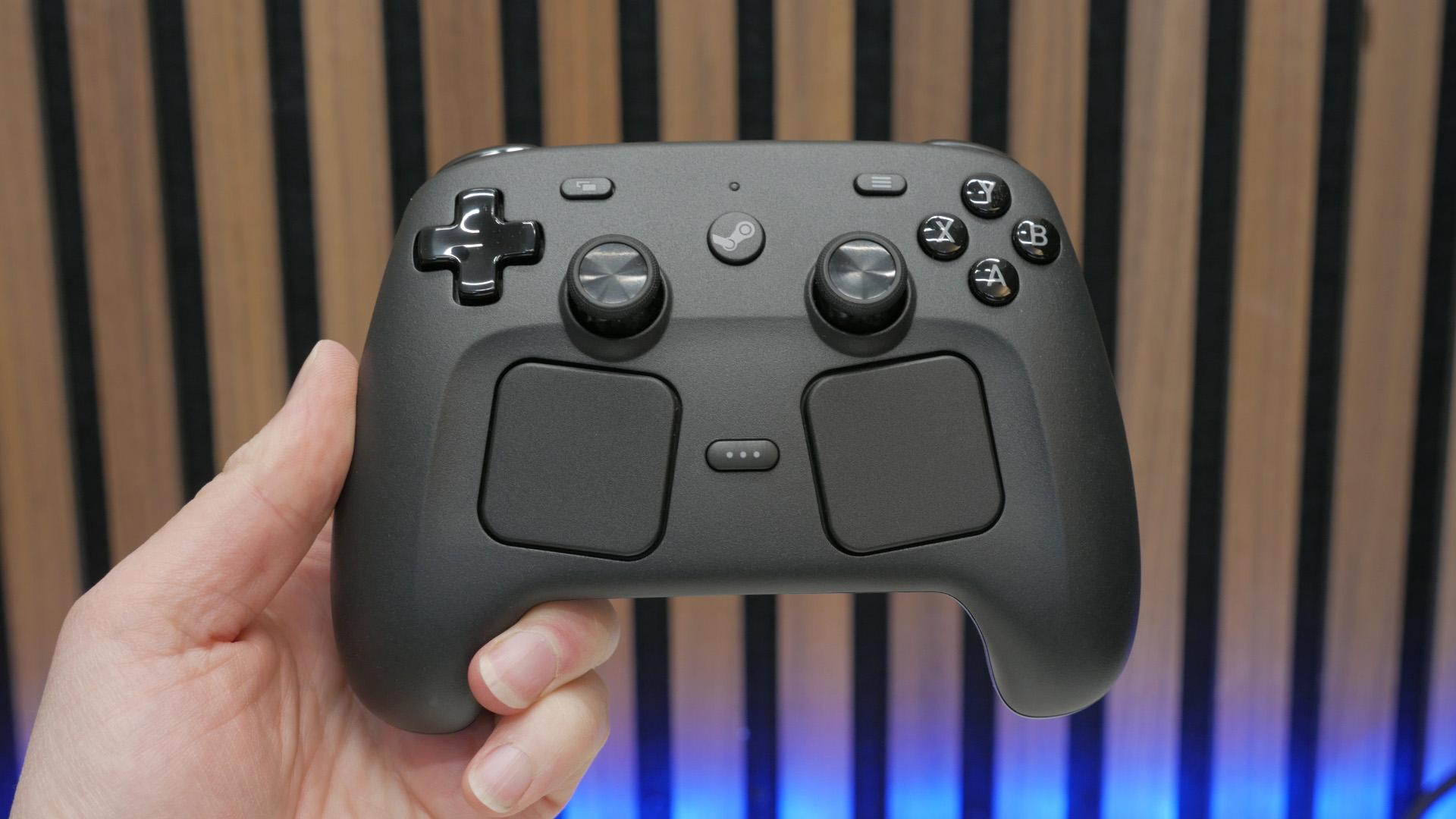
Wow, where to start? The Steam Controller is absolutely stuffed with features, despite its fairly compact size. For a start, you get your standard set of controller/gamepad features. So, there are ABXY face buttons, two thumbsticks, a four-way d-pad, a pair of bumper buttons, and two analog triggers. The thumbsticks have a symmetrical layout like a Sony DualSense, rather than an asymmetrical design like with an Xbox controller, but other than that, it's so far, so standard.

However, there's plenty more here, and I'm not even talking about the two big obvious squares on the front. Continuing around the outside, there are four buttons on the rear grips for activation with your middle or ring fingers, plus the grips have capacitive touch sensing areas, as do the thumbsticks.
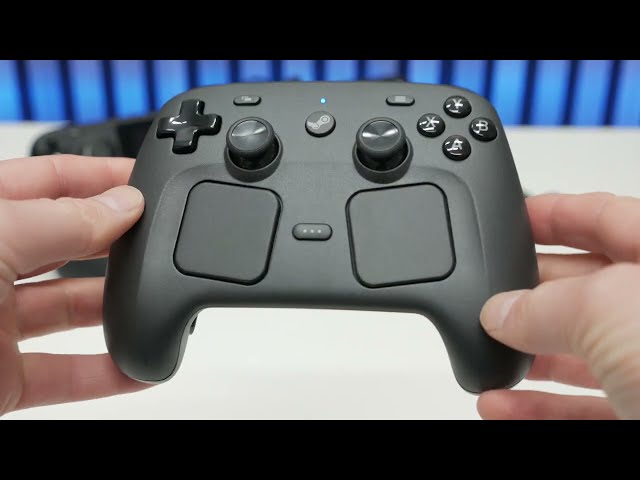
Meanwhile, inside the controller, it has a six-axis gyro sensor so you can use the whole controller for gestures, tilting it left and right, forward and back, and so on.
Then, of course, there are the most Valve/Steam signature elements of this controller, which are its trackpads. These mimic the trackpads of the Steam Deck and provide a mouse-like input for each thumb. By default, on the desktop, the left one acts like a scroll wheel while the right is your trackpad pointer/cursor. Plus, the right one can have a trackball-style effect, whereby flicking your finger over the trackpad's surface will give your cursor inertia, letting you quickly move it across the screen.

Finishing things off are the dedicated Steam button, the quick access menu button, and the view and menu buttons. The Steam button will power the controller on, and will then launch Steam into Big Picture mode if pressed again. However, this will need Steam to be running in the background already - it doesn't open Steam up on your PC.
Other controllers can offer the ability to move a mouse pointer with thumbsticks, click on items on screen with a trigger (as well as perform actions such as bringing up an onscreen keyboard), but this generally requires Guide Button Chords (combining the Steam/Xbox/PlayStation button with other inputs) to achieve, making them cumbersome. Not only do the Steam Controller's trackpads make this easier, but it defaults to the thumbsticks and other buttons triggering these button chords, so you can perform these actions with a single button press.
This mass of inputs and controls aside, the Steam Controller is actually quite simple and spartan when it comes to other extra features. There are none of the swappable faceplates of premium controllers like the Scuf Valor Pro or the replaceable batteries of a simple Xbox Controller, plus RGB isn't to be found anywhere.
Valve also isn't hyping up the buttons and switches of this controller as being mechanical or having mouse-like microswitches, and the triggers don't offer a short-throw, hair-trigger mode for use in FPS games. The thumbsticks also aren't customizable. In this sense, this is very much a general-purpose controller rather than a honed, competitive gaming-focused unit.

When it comes to battery life, the Steam Controller has an 8.39Wh rechargeable Li-ion battery that Valve says will give you "35+ hours" of gameplay. This is recharged via either the USB-C on its rear or via its magnetic wireless dongle.
This dongle is a mini cross between a dedicated wireless dock/charger, as you get on controllers like the GameSir G7 Pro Tri-Mode, and a simple USB dongle. It has a USB-C socket that will slide onto the USB-C plug on the end of the supplied cable, and from there it will deliver its wireless signal to the controller. It also then has three gold charge pips on its top that marry up with the matching gold pads on the underside of the controller.
This setup means you can charge your controller while still connected to the wireless dongle, saving you from having to momentarily unplug the dongle - and lose your connection - to charge using the USB-C port. However, it doesn't actually give you a physical place to plonk your gamepad, like you get with a dedicated charging dock.

Otherwise, that's it. There's no audio jack socket for a headset and no other physical features to speak of, with just the dongle and cable included in the box.
Setup and settings
The Steam Controller is automatically detected as a standard controller by Windows, whether you use the wireless dongle or directly plug the controller in - no driver is required. However, to get the most from it, you'll need to load up Steam and go to Settings, where you'll find the Controller tab.

Here you can see and set up multiple controllers, and when it comes to setup and settings, Valve offers you masses of options. Click on the controller Details button, and you can access functions such as quickly switching to a Nintendo layout and turning off rumble and haptics.
Click on Advanced Settings, and there are a host of options for things like choosing whether the Guide (Steam) button brings Steam to the forefront of your desktop, what type of PlayStation controller support you want, whether to enable Guide Button Chords, and what idle timeout time you'd like.

The real juicy stuff, though, is in the layout sections. Here, you can reassign most of the buttons to different functions, enable the gyro function, change trackpad and thumbstick sensitivity, change trackpad behavior, adjust the trackpad haptic feedback, and much more.
On the whole, it's quite a lot to get your head around, and I'd say some of the settings layout is a bit confusing. Certain functions are buried in menus only accessed via one route, and while it's relatively easy to get the hang of where these options lie during initial setup, I can see many people forgetting where they are if they ever need to come back to them a long time after initial setup.

Nonetheless, the overall experience here is mostly plug-and-play. While I admittedly didn't use the gyro much, all it took to get the controller working exactly as I wanted for 99% of tasks was to change the haptic feedback to a slightly lower setting and increase the trackball sensitivity slightly.
As for connecting to other devices, the Steam Controller supports Bluetooth and can connect to the Steam Deck via a cable. You have to hold down B+bumper+Steam button to power on the controller in Bluetooth mode, which is a bit cumbersome, but once set up, you're good to go.
One thing to note, however, is that my colleague, Christian, and I both encountered an issue with the Steam Controller that was quite concerning and will seemingly require a firmware update to fix. With the controller's dongle plugged into our PCs (different ones, using the two separate controllers we were sent for testing), upon booting up or restarting our PCs, they failed to boot or got stuck in a reboot loop.

On my system, my motherboard threw up a "BIOS is updating LED firmware" warning and would just restart after a few seconds, getting permanently stuck in this loop. Meanwhile, Christian's PC didn't show this error and would eventually start, but still could take several reboots. Both our systems run Asus X670 motherboards.
We've informed Valve of the issue, and they're working on replicating it and finding a fix. We'll update this review when that hopefully arrives. In the meantime, the only workaround is to unplug the controller each time I boot up my PC.
Design and comfort
Like the Steam Deck, the Steam Controller has a simple, perfunctory design that lacks any kind of flashy, customizable elements, but which ultimately looks really clean and smart. The main casing has a rough texture to it and a very dark grey coloring, while the d-pad, face buttons, triggers, and bumpers are shiny black plastic.

Beauty is in the eye of the beholder, though, and my partner's comment upon seeing the Steam Controller for the first time was simply to say "wow, that's ugly." You can't win 'em all, hey.
While style is entirely subjective, when it comes to comfort and usability, the Steam Controller is an object I can much more confidently say is going to have widespread appeal. So much of its form and layout is entirely familiar and built on decades of gamepad refinement by the industry as a whole, and from Valve's own work with the original Steam Controller and Steam Deck.

The grips' shape and size are somewhere between a current Xbox and PlayStation controller, with a slightly wider, blunter front end than the Xbox style, but not as round a midsection as a DualSense. If you do have larger hands, you might find them a little cramped, but as someone with 7.5in (20cm) long hands (wrist to middle finger), I found it perfectly comfortable. Plus, it's a huge upgrade over the grip-like bumps on the Steam Deck.

Indeed, when it comes to comparisons to the Steam Deck, the Steam Controller is a massive improvement across the board. The larger ABXY buttons and d-pad are easier to reach and feel far more familiar than the more compact ones on the Deck. The trackpads also fall into place very easily, and they don't get in the way of being able to easily reach the thumbsticks, unless you have particularly short thumbs.

Weighing in at 292g, it's a touch heavier than most controllers, but only by 10-20g or so, and largely that just serves to make it feel planted and secure. This heft also feels more controllable when using the gyro controls, though the lack of any rubber or even a soft-touch coating on the grips means it doesn't quite have the effortless non-slip grippability of some controllers.
Performance
As already alluded to, the Steam Controller largely feels great to use, in terms of shape and layout. However, it's not just these aspects that have improved compared to the Steam Deck and which work so well in general for a controller.
For instance, the triggers feel fantastic, despite not having a hair-trigger option. They're slightly stiffer and have a longer throw than those of the Steam Deck, giving a more precise, controllable feel. The D-pad also feels slightly more responsive, with more distinct directional input feel than the Deck - Valve told us it specifically worked with fighting game players to hone these inputs. You're not getting the micro-switch clicky feel of a premium controller, but it still feels really good.

The TMR thumbsticks are also a vast improvement over the Steam Deck's, with grippier tops, smoother movement, and a more controllable, slightly stiffer overall action. Because they're TMR, they won't ever develop a dead spot either.
As for the trackpads, they work using a haptic feedback system, so there's a little click/bump that follows your finger around as you scroll or move a pointer, and a click feel that accompanies a press down on the pad (the pad itself only moves very slightly, with no click of its own). I actually found the feedback a little too strong for using the mouse/trackball motion, as it's constantly clicking away and almost gives you that numb feeling that you get from using a vibrating power tool, just on the tip of your thumb. Dropping this haptic feedback setting down one notch, though, and this was fixed.
Battery life
By and large, the Steam Controller lives up to Valve's claims of offering 35+ hours of gaming time. Across a couple of weeks of testing, just a handful of short top-ups, mainly needed for applying firmware updates and for other testing purposes, meant it never once actually needed a charge.

Meanwhile, in comparison to other controllers, you're looking at more than double the battery life. The Sony DualSense will drop out after less than 12 hours, and options like the Scuf Reflex and GameSir G7 Pro offer similar longevity. Obviously, the Xbox controller can last longer, thanks to its larger AA/battery pack configuration, but overall, the Steam Controller is in a good place on this front.
Price
In merely a reasonable place is the Steam Controller price. At $99, it's certainly not a budget option, but it's upwards of half the price of premium options and only $15 more than a DualSense. Xbox controllers are nearly half the price of the Steam Controller, but ultimately offer far less functionality. The Steam Controller release date is May 4, 2026.
Alternatives
Sony PlayStation DualSense
Few controllers truly offer an alternative to everything that's packed into the Steam Controller. However, the presence of a gyro and trackpad on the DualSense does make it the next best option. It's far less well integrated into the PC gaming ecosystem, but is cheaper than the Steam Controller, and of course works with your PS5.
Read our full Sony PlayStation DualSense review for more details.
Verdict
It's hard to overstate just how special the Steam Controller feels. It's by an absolute country mile the best controller for PC gaming that has ever existed… by certain metrics.
As a pure controller for more competitive play, its lack of hair triggers, microswitch buttons, and customizable thumbsticks means it can't compete on that front. If you want peak gamepad performance, a more traditional premium controller is still your best bet. However, if you want a controller for slightly more casual everyday play, it's a rock-solid option.

Meanwhile, the truly transformative aspect of this controller is its trackpads. The way in which they make it easy to just sit back on your sofa, or recline your gaming chair, and navigate your PC (or docked Steam Deck), opening browser tabs, inputting text on an onscreen keyboard, and scrolling through webpages and documents, is just so useful and easy.
Then, when you want to fire up a game, they open up a world of options that just aren't available to a normal controller. They still can't quite compete with a keyboard and mouse for certain games, but it at least makes them an option.
If you've otherwise not bothered with a controller before, you only have a cheap basic controller, or you have a living room PC, the Steam Controller feels like a near-essential upgrade. It just brings so much utility for a very reasonable price.
If you don't have a living room PC or you've already invested in a high-end controller that satisfies most of your gamepad gaming needs, the Steam Controller won't feel so necessary, but you're probably still going to want one.

 English
 Arabic
 French
 Portuguese
 Deutsch
 Turkish
 Dutch
Dutch
 Italiano
 Russian
 Romaian
 Portuguese (Brazil)
 Greek
Greek